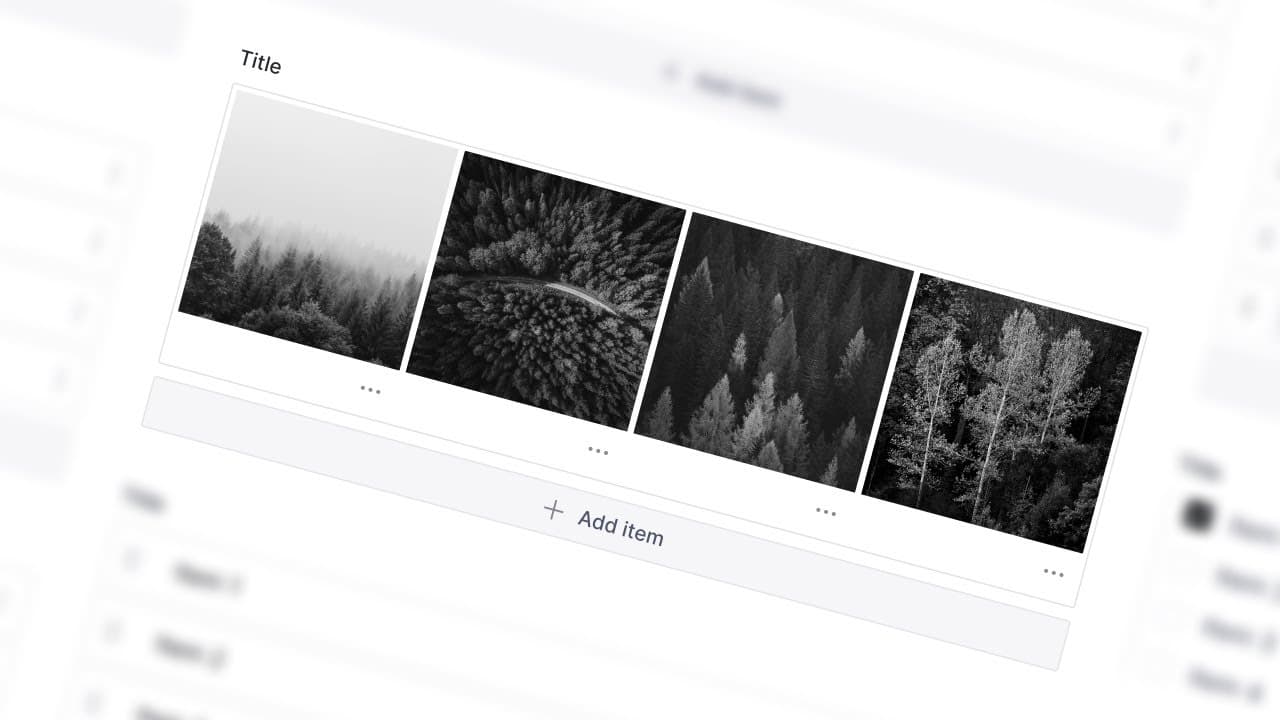
Page builder thumbnails are one of those jobs nobody wants to own. Every time you ship a new block, you owe yourself another little screenshot at the right aspect ratio, dropped into the right slot in the schema, named the right thing in your CDN. Multiply that by twenty blocks across five projects and you're losing a real day to it every quarter.
We've written about this before. Our last post shipped a Figma community file (opens in new tab) with a 3:2 template to paste screenshots into. It's still a useful tool if you want to art-direct the result, but it's still you doing the work and the work itself is more painful than it looks. Skipping it isn't really an option, either, these small editorial polish moments are what make the CMS feel built-for-purpose to your client.
This post is the next step. We've built a Claude Code skill that handles the whole flow agentically, from reading your schema to uploading the final WebP files into your project. You run one prompt, wait five to seven minutes, and come back to a finished set of thumbnails.
What page builder thumbnails are for
Page builder thumbnails show editors what's in each block before they add it to the page. The picker - Sanity calls it the insertMenu - is a grid of these previews on every page builder array in Sanity Studio v3 or v4. By default it's Sanity's stock icons. Fine in dev. Slightly grim once a client logs in. Real thumbnails turn the picker from a developer tool into a design one.
Polished thumbnails let editors visualise a block before they build with it:
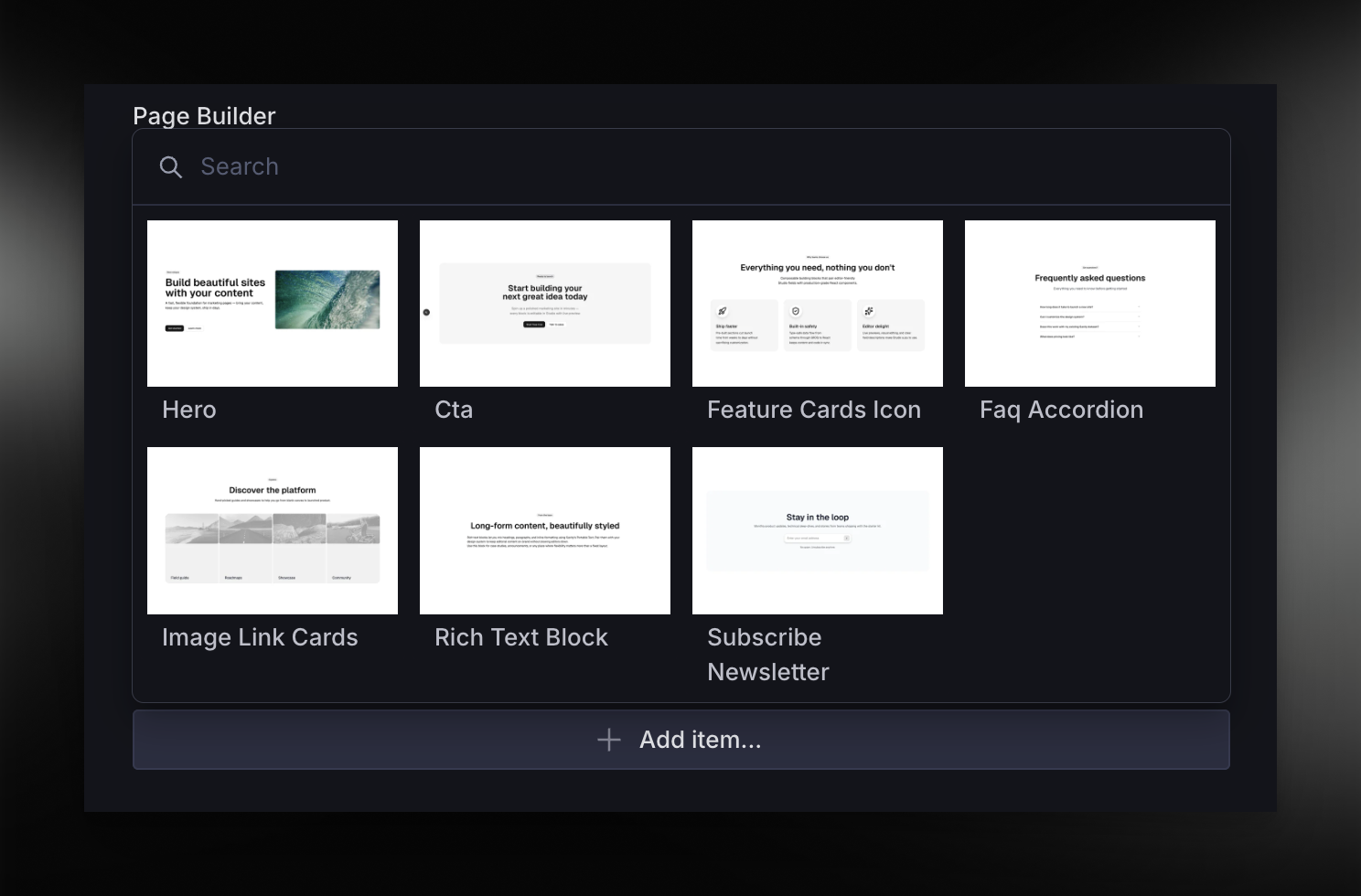
The setup looks like this in your schema:
The work is in producing the WebP files, naming them to match the schema type, and keeping them in sync as the design evolves. That's what we're automating.
Automating Sanity page builder thumbnails: how the three approaches compare
There are basically three ways to keep this picker looking sharp. Here's the rough shape of each:
The agentic option isn't faster because the screenshots themselves are quicker. It's faster because nobody has to remember to do them. Add a block on a Friday, re-run the skill, the new thumbnail looks identical to the rest of the set.
The skill, in short
The skill lives as a public gist (opens in new tab) so you can drop it into any Claude Code project. It's designed against Turbo Start Sanity (opens in new tab), our open-source starter for Next.js and Sanity, but the steps are generic enough to adapt.
It does nine things, in order:
- Verifies prerequisites. Playwright MCP is configured, Sanity Studio exists, the Next.js dev server can start, API credentials are present.
- Discovers blocks. Reads your schema files to identify every page builder block type and what fields each one needs.
- Reads components. Locates the section components, works out how each one renders images, checks for self-fetching behaviour.
- Obtains images. Queries your existing Sanity assets first. Only uploads placeholders if you explicitly say yes.
- Generates a preview page. Creates a client component that renders every block with a
data-block="{schemaTypeName}" attribute, using real Sanity asset references and contextual mock data.
- Screenshots blocks. Uses Playwright MCP to navigate to
/thumbnails, verify images render, then capture each block at 1440px viewport width.
- Processes images. Scales to 600px wide, crops or pads height to a 400px max, exports WebP at quality 85 using ffmpeg or sharp.
- Updates the schema. Adds the
insertMenu.views config and groups so the new thumbnails actually appear in the picker.
- Cleans up. Deletes Playwright logs, raw screenshots, and the preview page. Optional: removes any uploaded placeholder assets.
The whole run takes about five to seven minutes. On a small page builder you'll see closer to four. On a big one with thirty blocks and a slow connection, expect closer to nine.
What the demo looks like
We recorded a quick walkthrough on the channel. The clip below shows the full run on a Turbo Start Sanity project that already has thumbnails. The prompt deletes them, the skill regenerates everything, and the new set is live in the studio after a refresh.
The actual prompt is in the description of the video and pinned in the gist. There's nothing magical about it. It's a structured instruction that tells the skill what to discover, what to generate, and what to clean up afterwards.
Running it yourself
Three prerequisites first:
Once those are in place, three steps to run it:
The agent will spend the first thirty seconds or so reading your schema, then a couple of minutes building the preview page, then most of the rest of the time letting Playwright do its job.
Two things that catch people out:
The preview page must be a client component. The skill marks it "use client" because the mock data passes function props and server components reject those. If you skip that, you'll see a confusing serialisation error and lose two minutes debugging.
Every mock array item needs a _type field. Sanity's discriminated unions rely on _type to know which block to render. Forget it on a single mock and that block silently disappears from the screenshots.
Both rules are baked into the skill's instructions, so you only need to worry about them if you start adapting it for a new schema shape.
Services
$ Need a Sanity Studio that doesn't fight your team?
We build editor-friendly Sanity studios on Next.js with page builders, presentation, and the kind of tooling that makes shipping content boring in a good way.
>See how we work with Sanity
Why this beats the Figma file we built
We're not theorising about a Figma workflow. We shipped one (opens in new tab) - a community file with a 3:2 artboard and clean export presets, free to clone. People use it. It's a fine tool. But it has four problems that the agentic version doesn't, and we ran into all four running it ourselves.
It's slow. The Figma flow looks light on paper: screenshot, paste, crop, export. In practice, every block takes you through opening Figma, scaling the screenshot to roughly fit the artboard, nudging it into place, exporting, then naming the file to match the schema type. Forty-five minutes per project, easily. The agentic version is five.
It's inconsistent. "Scale to roughly fit the artboard" is the bit that bites. Every developer eyeballs it slightly differently, so the picker ends up with twenty thumbnails that all look subtly off from each other. The headless browser renders the components in a real preview page instead, so the scale is identical by construction.
It's chicken-and-egg. You can't screenshot a block in Figma until it has real Sanity content in it. So a copywriter has to draft and populate every block before the thumbnail flow can even start - which is the wrong way round, because thumbnails exist so editors can pick a block before they build it, not after. The agentic version mocks contextual content from the schema itself.
It drifts. This is the killer. The moment you ship a new block or restyle an existing one, the Figma version is wrong. Nobody opens Figma after a Friday merge to redo the thumbnails. A few merges later, half your picker is stale. The agentic version is one command. Re-run the skill, the whole set is current again.
Tradeoffs and limitations
This isn't a silver bullet. Two structural things to know up front.
It's bound to your component layout. The skill renders your real components in a real preview page. If your block looks bad in production, the thumbnail will look bad too. That's usually a feature, not a bug, but it does mean you can't fix the thumbnail without fixing the design.
Vertex outpainting isn't part of this. Some teams want a 16:9 thumbnail with extra art around the edges. The skill produces a tight 3:2 image of the block itself. If you want the marketing-style thumbnail, you'll layer that on top.
When the skill stumbles
Three failure modes show up often enough to be worth flagging.
Playwright times out on heavy blocks. Hero blocks with autoplay video or stacked animations can blow past the screenshot timeout. We've had no issues on macOS with the official MCP server, but mileage varies on Linux CI runners. The skill catches the error and skips the block, so you'll see the default Sanity icon in the picker instead of a fresh thumbnail. Either bump the Playwright wait or simplify the block's preview-mode rendering.
Asset references go missing on niche block types. If a block expects an image type that doesn't exist anywhere in your dataset, the skill can't borrow a real reference. It'll ask permission to upload a placeholder. Say no and you'll see a broken image in the screenshot instead.
The schema update step can't find your insertMenu config. The skill expects your pageBuilder field in the standard Turbo Start Sanity layout. If you've moved it somewhere custom, the agent will tell you the file isn't where it expected and ask you to point it at the right one. A five-line tweak in the skill markdown makes the redirect permanent.
The full skill
If you want the whole thing in one place (to fork it, tweak it, or just read it without bouncing to the gist), here it is. Drop this verbatim into .claude/skills/generate-thumbnails-agentic/SKILL.md in your project. Same content as the gist (opens in new tab), kept here so the post is self-contained.
1
2
3
4
5
6
7
8
9
10
11
12
13
14
15
16
17
18
19
20
21
22
23
24
25
26
27
28
29
30
31
32
33
34
35
36
37
38
39
40
41
42
43
44
45
46
47
48
49
50
51
52
53
54
55
56
57
58
59
60
61
62
63
64
65
66
67
68
69
70
71
72
73
74
75
76
77
78
79
80
81
82
83
84
85
86
87
88
89
90
91
92
93
94
95
96
97
98
99
100
101
102
103
104
105
106
107
108
109
110
111
112
113
114
115
116
117
118
119
120
121
122
123
124
125
126
127
128
129
130
131
132
133
134
135
136
137
138
139
140
141
142
143
144
145
146
147
148
149
150
151
152
153
154
155
156
157
158
159
160
161
162
163
164
165
166
167
168
169
170
171
172
173
174
175
176
177
178
179
180
181
182
183
184
185
186
187
188
189
190
191
192
193
194
195
196
197
198
199
200
201
202
203
204
205
206
207
208
209
210
211
212
213
214
215
216
217
218
219
220
221
222
223
224
225
226
227
228
229
230
231
232
233
234
235
236
237
238
239
240
241
242
243
244
245
246
247
248
249
250
251
252
253
254
255
256
257
258
259
260
261
262
263
264
265
266
267
268
269
270
271
272
273
274
275
276
277
278
279
280
281
282
283
284
285
286
287
288
289
290
291
292
293
294
295
296
297
298
299
300
301
302
303
304
305
306
307
308
309
310
311
312
313
314
315
316
317
318
319
320
321
322
323
324
325
326
327
328
329
330
331
332
333
334
335
336
337
338
339
340
341
342
343
344
345
346
347
348
349
350
351
352
353
354
355
356
357
358
359
360
361
362
363
364
365
366
367
368
369
370
371
372
373
374
375
376
377
378
379
380
381
382
383
384
385
386
387
388
389
390
391
392
393
394
395
396
397
398
399
400
401
402
403
404
405
406
407
408
409
410
411
412
413
414
415
416
417
418
419
420
421
422
423
424
425
426
427
428
429
430
431
432
433
434
435
436
437
438
439
440
441
442
443
444
445
446
447
448
449
450
451
452
453
454
455
456
457
458
459
460
461
462
463
464
465
466
467
468
469
470
471
472
473
474
475
476
477
478
479
480
481
482
483
484
485
486
487
name: generate-thumbnails-agentic
description: Use when setting up Sanity Studio page builder array thumbnails using Playwright MCP for fully agentic browser-based screenshot generation. Use when the user says "generate thumbnails" and Playwright MCP is available. Requires a Sanity Studio with page builder blocks, a Next.js frontend, and the Playwright MCP server configured.
---
# Generate Sanity Studio Page Builder Thumbnails (Agentic)
## Overview
Fully agentic thumbnail generation for Sanity Studio's `insertMenu` grid view. You (Claude) read the schema, upload placeholder images to Sanity, generate a preview page with real asset references, use Playwright MCP to screenshot each block, process the images, and output optimized thumbnails. No scripts, no manual steps.
## Prerequisites
**STOP and check these before proceeding:**
1. **Playwright MCP is configured.** Run a Playwright MCP tool (e.g. `browser_navigate`) to verify. If unavailable, **STOP** and ask the user:
> "This skill requires the Playwright MCP server for browser automation. Please run this command and restart Claude Code:"
>
> ```
> claude mcp add playwright -- npx @playwright/mcp@latest
> ```
>
> Do NOT proceed until the user confirms Playwright MCP is available.
2. **The project has a Sanity Studio** with page builder blocks (look for `schemaTypes/blocks/` or similar).
3. **The project has a Next.js frontend** that renders those blocks as section components.
4. **The dev server is running.** Check by curling `localhost:3000` (or the project's dev port). If not running, **ask the user for permission to start it** (e.g. "No dev server is running on :3000. Want me to start `pnpm dev:web` in the background, or will you start it yourself?"). Wait for explicit approval before launching anything — some projects have dev server quirks, port conflicts, or the user may prefer to run it in their own terminal. Do NOT auto-start without permission.
5. **Sanity project credentials are available.** Find the `projectId` and `dataset` from `sanity.config.ts`, `sanity.cli.ts`, or environment variables. Also locate a write API token (check `.env` files for `SANITY_API_WRITE_TOKEN` or similar).
## Process
```dot
digraph generate_thumbnails_agentic {
"Verify Playwright MCP" [shape=diamond];
"Tell user to install" [shape=box];
"Discover blocks from schema" [shape=box];
"Read section components" [shape=box];
"Get placeholder images into Sanity" [shape=box];
"VERIFY: have asset refs?" [shape=diamond];
"Generate preview page WITH images" [shape=box];
"Verify dev server running" [shape=diamond];
"Ask permission to start dev server" [shape=box];
"Navigate to /thumbnails" [shape=box];
"VERIFY: images visible?" [shape=diamond];
"Debug image rendering" [shape=box];
"Screenshot each block" [shape=box];
"Process images (resize + WebP)" [shape=box];
"Update pageBuilder schema" [shape=diamond];
"Add insertMenu config" [shape=box];
"Clean up placeholder assets" [shape=box];
"Done" [shape=doublecircle];
"Verify Playwright MCP" -> "Tell user to install" [label="missing"];
"Tell user to install" -> "Verify Playwright MCP" [label="retry"];
"Verify Playwright MCP" -> "Discover blocks from schema" [label="available"];
"Discover blocks from schema" -> "Read section components";
"Read section components" -> "Get placeholder images into Sanity";
"Get placeholder images into Sanity" -> "VERIFY: have asset refs?";
"VERIFY: have asset refs?" -> "Get placeholder images into Sanity" [label="no, retry"];
"VERIFY: have asset refs?" -> "Generate preview page WITH images" [label="yes"];
"Generate preview page WITH images" -> "Verify dev server running";
"Verify dev server running" -> "Ask permission to start dev server" [label="not running"];
"Ask permission to start dev server" -> "Verify dev server running" [label="retry"];
"Verify dev server running" -> "Navigate to /thumbnails" [label="running"];
"Navigate to /thumbnails" -> "VERIFY: images visible?";
"VERIFY: images visible?" -> "Debug image rendering" [label="no"];
"Debug image rendering" -> "Navigate to /thumbnails" [label="retry"];
"VERIFY: images visible?" -> "Screenshot each block" [label="yes"];
"Screenshot each block" -> "Process images (resize + WebP)";
"Process images (resize + WebP)" -> "Update pageBuilder schema";
"Update pageBuilder schema" -> "Add insertMenu config" [label="missing"];
"Update pageBuilder schema" -> "Clean up placeholder assets" [label="exists"];
"Add insertMenu config" -> "Clean up placeholder assets";
"Clean up placeholder assets" -> "Done";
}
```
## Step 1: Discover Page Builder Blocks
Read the schema files to find all page builder block types:
1. Find the page builder definition (e.g. `schemaTypes/definitions/pagebuilder.ts`)
2. Find the blocks index that lists all types
3. Read each block schema to understand fields, types, and required vs optional
**Record for each block:**
- Schema type `name` (this becomes the thumbnail filename — must match exactly)
- All fields with types (string, text, image, richText, reference, array, etc.)
- **Which fields are image types** — mark these, they need real Sanity asset references
- Required vs optional fields
## Step 2: Read Frontend Components
Find the PageBuilder renderer and each section component:
1. Find the component mapping (which block type maps to which component)
2. Read each section component for:
- Props interface (what data shape it expects)
- Built-in default values
- Whether it self-fetches from Sanity when no data is provided
- **How it renders images** — find the `SanityImage` or image component. What exact prop shape does it expect? (Usually `{ _type: "image", asset: { _type: "reference", _ref: "image-xxx" }, alt: "text" }`)
## Step 3: Get Placeholder Images Into Sanity
<HARD-GATE>
DO NOT skip this step. DO NOT pass `null` for image fields. DO NOT use plain `<img>` tags.
Blocks with image fields MUST have real Sanity image asset references so the `SanityImage` component renders actual images in the thumbnails.
If you skip this step, the thumbnails will be text-only and look incomplete.
**ALWAYS check for existing images in the dataset FIRST.** Most projects already have image assets — use those. Only suggest uploading new placeholders as a last resort, and ALWAYS ask the user for permission before writing to their dataset.
</HARD-GATE>
**3a. Check for existing images in the dataset first:**
Use the Sanity MCP `query_documents` tool. If the MCP is not authenticated (common error: "project user not found"), fall back to a direct API call using the project's read token:
```bash
curl -s -G "https://PROJECT_ID.api.sanity.io/v2024-01-01/data/query/DATASET" \
-H "Authorization: Bearer READ_TOKEN" \
--data-urlencode 'query=*[_type == "sanity.imageAsset"][0...20]{ _id, originalFilename, metadata { dimensions } }'
```
Query at least 10–20 images, not just 5 — you need options to pick from.
<HARD-GATE>
**VISUALLY PREVIEW candidate images before picking — do NOT just grab the first landscape-shaped asset.**
The first landscape-shaped image in a dataset is often a partner/competitor logo, a branded marketing graphic, or something otherwise unsuitable as a generic placeholder. Picking it blindly means that logo ends up plastered across every hero thumbnail in Studio, which looks wrong and is confusing for editors. (This has happened — don't repeat it.)
For each candidate asset you're considering, download a small preview and view it with the Read tool:
```bash
curl -s -o "/tmp/preview-{hash}.{ext}" "https://cdn.sanity.io/images/PROJECT_ID/DATASET/{hash}-{width}x{height}.{ext}?w=400"
```
Then `Read` the downloaded file to see it. Reject any with visible third-party logos or brand marks.
</HARD-GATE>
**Pick 5–8 VARIED images covering different subject types** — e.g. product shots, scientific imagery, team photos, portraits, lab environments, abstract/data visuals. Assign them deliberately across block categories so the thumbnail grid feels visually distinct, not repetitive. One image reused across 15 blocks is a red flag.
Also check the project's `public/` or static-asset folder — some projects ship decorative background textures (hardcoded PNGs imported directly by specific components) that are the intended choice for `backgroundImage` fields.
If images exist and you've visually verified your picks, use their `_id` values as asset references and skip to 3d.
**3b. If no images exist, download placeholders:**
```bash
curl -L -o /tmp/placeholder-landscape.jpg "https://picsum.photos/seed/thumb-land/800/600"
curl -L -o /tmp/placeholder-portrait.jpg "https://picsum.photos/seed/thumb-port/600/800"
curl -L -o /tmp/placeholder-square.jpg "https://picsum.photos/seed/thumb-sq/600/600"
```
**3c. Upload each image to Sanity (ASK USER FIRST):**
<HARD-GATE>
**ALWAYS ask the user before uploading anything to their Sanity dataset.** Do not upload images without explicit permission — the user may not want placeholder assets in their production dataset.
</HARD-GATE>
Find the projectId, dataset, and API token from the project config files. Then upload:
```bash
curl -s -X POST \
"https://PROJECT_ID.api.sanity.io/v2024-01-01/assets/images/DATASET" \
-H "Authorization: Bearer API_TOKEN" \
-H "Content-Type: image/jpeg" \
--data-binary @/tmp/placeholder-landscape.jpg
```
Replace `PROJECT_ID`, `DATASET`, and `API_TOKEN` with actual values from the project.
The response JSON contains the asset document. Extract the `_id` field — it looks like `image-<hash>-800x600-jpg`.
**Repeat for each placeholder image variant** (landscape, portrait, square).
**3d. VERIFY — you must have at least one working asset reference before continuing.**
Confirm by querying:
```groq
*[_type == "sanity.imageAsset"] | order(_createdAt desc) [0...3]{ _id }
```
You should get back `_id` values. These are your asset references.
**Store them as variables for Step 4:**
- `LANDSCAPE_REF` = `image-<hash>-800x600-jpg`
- `PORTRAIT_REF` = `image-<hash>-600x800-jpg`
- `SQUARE_REF` = `image-<hash>-600x600-jpg`
## Step 4: Generate the Preview Page
Create the preview page at the app router path (e.g. `apps/web/src/app/thumbnails/page.tsx`).
**Page structure:**
<HARD-GATE>
- **MUST be a client component** — add `"use client"` at the top of the file. Many section components use client-side libraries (e.g. `DynamicIcon` from `lucide-react/dynamic` with function props like `fallback`, Radix UI primitives, `useFormStatus`). These function props CANNOT be serialized across the React Server Component boundary. A server component page will throw: `"Functions cannot be passed directly to Client Components"`.
- Do NOT add a `process.env.NODE_ENV` guard — it's unreliable in Next.js dev mode and this page will be deleted after screenshots anyway.
</HARD-GATE>
- Import section components directly (NOT through PageBuilder which needs Visual Editing context)
- Wrap each block: `<div data-block="{schemaTypeName}">`
- `data-block` value MUST exactly match the schema type `name`
- Do NOT add `style={{ background: "#CCC" }}` to wrappers — it adds visual noise to thumbnails
**Mock data rules:**
- **Contextual lorem ipsum** — content that makes sense for each block's purpose:
- Hero: compelling headline, persuasive subtext
- CTA: action-oriented copy
- FAQ: realistic questions with helpful answers
- Features: distinct capabilities with clear descriptions
- Newsletter: enticing signup copy
- Portfolio/work: creative project descriptions
- **Rich text / Portable Text** — use inline block format:
```typescript
[
{
_type: "block",
_key: "k1",
style: "normal",
children: [{ _type: "span", _key: "s1", text: "Your text", marks: [] }],
markDefs: [],
},
];
```
- **Image fields — MANDATORY, do not pass null:**
```typescript
image: {
_type: "image",
asset: {
_type: "reference",
_ref: "LANDSCAPE_REF_FROM_STEP_3" // e.g. "image-abc123-800x600-jpg"
},
alt: "Placeholder image"
}
```
Use landscape refs for hero/banner images, portrait for profile/avatar images, square for card thumbnails.
Every block that has an image field MUST receive a real asset reference.
- **Self-fetching components — MUST pass mock items directly:**
Some components (e.g. work lists, archive lists, project grids) will self-fetch from Sanity when no items are passed. On a fresh project this results in empty lists — the thumbnail shows only the heading with nothing below it.
**ALWAYS pass mock items directly as props.** Read the component source to find what fields each item needs. Typical pattern:
```typescript
// WorkList / project grid: pass `projects` prop
projects={[
{ _id: "p1", title: "Brand Identity Redesign", year: "2025",
thumbnail: { _type: "image", asset: { _type: "reference", _ref: "LANDSCAPE_REF" } } },
{ _id: "p2", title: "E-Commerce Platform", year: "2024",
thumbnail: { _type: "image", asset: { _type: "reference", _ref: "LANDSCAPE_REF" } } },
{ _id: "p3", title: "Mobile App Design", year: "2024",
thumbnail: { _type: "image", asset: { _type: "reference", _ref: "LANDSCAPE_REF" } } },
{ _id: "p4", title: "Marketing Campaign", year: "2023",
thumbnail: { _type: "image", asset: { _type: "reference", _ref: "LANDSCAPE_REF" } } },
]}
// ArchiveList: pass `items` prop
items={[
{ _id: "a1", title: "Gallery Website", year: "2023", role: "Lead Designer",
client: "Studio Co", description: "A minimal portfolio site",
thumbnail: { _type: "image", asset: { _type: "reference", _ref: "LANDSCAPE_REF" } } },
{ _id: "a2", title: "Dashboard UI", year: "2022", role: "UI Designer",
client: "Tech Inc", description: "Analytics dashboard redesign",
thumbnail: { _type: "image", asset: { _type: "reference", _ref: "LANDSCAPE_REF" } } },
]}
```
Replace `LANDSCAPE_REF` with the actual asset reference from Step 3.
Include enough items to make the grid look populated (3-4 for grids, 2-3 for lists).
- **Reference fields (non-self-fetching)** — pass inline objects with the fields the component reads (`_id`, `title`, etc.)
- **Buttons** — include 1-2 with contextual labels
- **`_type` fields on mock items** — every mock item in an array must include its `_type` field matching the schema type name. For example, FAQ items need `_type: "faq"`, feature card items need `_type: "featureCardIcon"`. Read the component's TypeScript props to find the required discriminant. Missing `_type` causes type errors and can break rendering.
- Use `any` casts or `@ts-expect-error` for type mismatches — this is dev-only
- Give each mock item unique `_key` values
## Step 5: Screenshot Each Block with Playwright MCP
**Ensure output directory exists:**
```bash
mkdir -p apps/studio/static/thumbnails
```
**Use Playwright MCP tools in sequence:**
1. **Set viewport:** Use `browser_resize` or navigate with a wide viewport (1440x900)
2. **Navigate:** `browser_navigate` to `http://localhost:3000/thumbnails`
3. **Wait for render:** Allow the page to fully load (wait for network idle or a brief pause)
<HARD-GATE>
4. **VERIFY IMAGES ARE VISIBLE:** Take a full-page screenshot first and visually inspect it. Look for:
- Are images actually rendering in hero blocks, card blocks, about sections?
- Or are there blank/broken image areas?
If images are NOT visible: STOP. Debug the issue. Common causes:
- Asset reference is wrong (check `_ref` value matches an actual `_id` from Sanity)
- Image component expects different prop shape than what you passed
- The dev server needs to be restarted to pick up the new page
- CORS issue with Sanity CDN (check browser console via Playwright)
DO NOT proceed to take individual screenshots until images are confirmed visible.
</HARD-GATE>
5. **For each block:**
- Scroll to the `[data-block="{name}"]` element
- Take a screenshot of that element using `browser_take_screenshot`
- Save the screenshot to a temp location
## Step 6: Process Images
Output: **600x400** WebP thumbnails that show the **full width** of each block.
<HARD-GATE>
**DO NOT use `fit: 'cover'` or `force_original_aspect_ratio=increase` with a center crop.** Blocks render at 1440px wide but thumbnails are 600px wide. A cover-crop zooms in and clips the sides — titles get cut off, cards disappear, centered content becomes unrecognizable.
**CORRECT approach:** Scale width to 600px first (height proportional), THEN crop height to 400 max from top, padding with white if shorter. This preserves the full block layout.
</HARD-GATE>
**Option A — ffmpeg (preferred, commonly available on macOS/Linux):**
```bash
ffmpeg -y -i input.png \
-vf "scale=600:-1:flags=lanczos,crop=600:min(ih\,400):0:0,pad=600:400:0:(oh-ih)/2:white" \
-quality 85 output.webp
```
This pipeline:
1. Scales width to 600px (height proportional) — full block width preserved
2. Crops height to 400px from top if taller (captures header + key content)
3. Pads with white and centers vertically if shorter than 400px
**Option B — sharp (Node one-liner):**
```bash
node -e "require('sharp')('input.png').resize(600, null).extend({bottom: 400, background: 'white'}).resize(600, 400, {fit: 'cover', position: 'top'}).webp({quality:85}).toFile('output.webp')"
```
**Batch processing example (ffmpeg):**
```bash
for f in /tmp/thumbnails/*-raw.png; do
name=$(basename "$f" -raw.png)
ffmpeg -y -i "$f" \
-vf "scale=600:-1:flags=lanczos,crop=600:min(ih\,400):0:0,pad=600:400:0:(oh-ih)/2:white" \
-quality 85 "apps/studio/static/thumbnails/${name}.webp"
done
```
**Final output:** WebP files in `apps/studio/static/thumbnails/` named `{schemaTypeName}.webp`
## Step 7: Update pageBuilder Schema
Check the page builder schema definition for `insertMenu` config. If missing, add the `views` config (and optionally `groups`):
```typescript
options: {
insertMenu: {
groups: [
{
name: "groupName",
title: "Group Title",
of: ["blockType1", "blockType2"],
},
],
views: [
{
name: "grid",
previewImageUrl: (schemaTypeName) =>
`/static/thumbnails/${schemaTypeName}.webp`,
},
],
},
},
```
**Groups** add category filter tabs above the grid view, letting editors filter blocks by type (e.g. "Hero", "Cards", "Media"). Each group has:
- `name`: unique identifier (camelCase)
- `title`: display label shown in the filter tab
- `of`: array of schema type names that belong to this group
Blocks can appear in multiple groups (cross-group membership). Blocks not assigned to any group still appear in the default "All" view. When adding new blocks, remember to assign them to at least one group.
**If `groups` already exist**, check whether new blocks need to be added to the appropriate group(s). If generating thumbnails for new blocks, update both the thumbnails AND the groups array.
The `views` path must match where the processed thumbnails were saved.
## Step 8: Clean Up
**8a. Delete Playwright MCP console logs:**
Playwright MCP automatically creates a `.playwright-mcp/` directory with console log files (e.g. `console-2026-*.log`). Delete the directory after screenshots are complete:
```bash
rm -rf .playwright-mcp/
```
Also add `.playwright-mcp/` to `.gitignore` if not already present — these logs should never be committed.
**8b. Delete raw screenshot artifacts:**
After processing images to WebP in Step 6, immediately delete the raw screenshot files (e.g. `*-raw.jpeg` or `*-raw.png`) from the output directory. These are intermediate files and are no longer needed.
```bash
rm apps/studio/static/thumbnails/*-raw.jpeg
rm apps/studio/static/thumbnails/*-raw.png
```
Only the final `{schemaTypeName}.webp` files should remain in the thumbnails directory.
**8c. Delete the preview page:**
The `/thumbnails` preview page was only needed to render blocks for screenshotting. Delete it now that screenshots are complete:
```bash
rm -rf apps/web/src/app/thumbnails/
```
This removes both `page.tsx` and any wrapper files (e.g. `pet-wrapper.tsx`) created for the preview. Do NOT keep the preview page — it adds dead code to the project and can be regenerated by running this skill again if thumbnails need updating.
**8d. Ask about placeholder images (if uploaded):**
If you uploaded placeholder images to Sanity in Step 3 (i.e. no existing images were available), ask the user:
> "Thumbnails are done. I uploaded placeholder images to your Sanity dataset for the screenshots. Want me to delete them, or keep them for future use?"
If deleting, use the Sanity API or MCP tools to remove the uploaded assets by their `_id`.
If existing dataset images were used (Step 3a), skip this — nothing was uploaded.
## Common Mistakes
| ------------------------------------------------- | ------------------------------------------------------------------------------------------------- |
| **Cropping thumbnails with `fit: cover` (most common)** | **Scale width to 600 first, then crop/pad height. Cover-crop clips wide blocks.** |
| **Preview page as server component** | **MUST be `"use client"` — function props (DynamicIcon fallback, etc.) can't serialize across RSC boundary** |
| **Missing `_type` on mock array items** | **Every mock item needs `_type` matching its schema name (e.g. `_type: "faq"`, `_type: "featureCardIcon"`)** |
| **Uploading to Sanity without asking** | **ALWAYS ask user before writing to their dataset — use existing assets when possible** |
| Skipping image upload when images needed | NEVER pass `null` for image fields. Use existing Sanity assets or upload placeholders (with permission) |
| Filename doesn't match schema type name | Use exact `name` from schema (e.g. `featureCardsIcon` not `feature-cards-icon`) |
| Using PageBuilder component | Import section components directly — PageBuilder needs Visual Editing context |
| Generic placeholder text | Write contextual copy matching each block's purpose |
| Missing `_key` on array items | Every array item needs a unique `_key` string |
| Rich text as plain string | Must use Portable Text block format with `_type: "block"` |
| Using `NODE_ENV` guard on preview page | Unreliable in Next.js dev — page will be deleted anyway, skip the guard |
| Adding `style={{ background: "#CCC" }}` to wrappers | Adds visual noise to thumbnails — let blocks render with their own backgrounds |
| Sanity MCP not authenticated | Fall back to direct API calls with project read/write tokens from `.env` files |
| Playwright MCP not available | Run `claude mcp add playwright -- npx @playwright/mcp@latest` and restart Claude Code |
| Dev server not running | Ask user for permission to start it — don't auto-launch, but offer to run it (e.g. `pnpm dev:web`) in the background |
| Screenshots too large/small | Set viewport to 1440x900 before navigating, resize output to 600x400 |
| Using plain `<img>` for SanityImage fields | Components expect Sanity image props — upload to Sanity and use asset refs |
| Taking screenshots before verifying images render | Always take a full-page screenshot first and visually confirm images are visible |
| Leaving raw screenshots (`*-raw.jpeg`) behind | Delete all raw/intermediate files after processing to WebP — only `.webp` files should remain |
| Leaving the preview page in the codebase | Delete `app/thumbnails/` after screenshots are taken — it's dead code and easily regenerated |
| Adding new blocks without updating `groups` | When generating thumbnails for new blocks, also add them to the appropriate `insertMenu.groups` in the page builder schema |
## Red Flags — STOP If You Notice These
- You're about to write `image: null` or `image={null}` — **STOP**, go back to Step 3
- You're about to use `<img src="https://...">` instead of SanityImage — **STOP**, that won't work with the component
- You're taking screenshots but haven't verified images are rendering — **STOP**, take a full-page screenshot first
- You're skipping Step 3 because "it's faster" — **STOP**, text-only thumbnails are incomplete
- The preview page renders but image areas are blank — **STOP**, debug the asset reference before screenshotting
- You're about to use `fit: 'cover'` or `force_original_aspect_ratio=increase` in image processing — **STOP**, this will clip wide blocks. Use scale-width-first approach.
- You're creating the preview page WITHOUT `"use client"` — **STOP**, function props in child components will crash the page
- You're about to upload images to Sanity without asking the user — **STOP**, check for existing assets first, and always ask permission before writing to their dataset
- You're passing mock items without `_type` fields — **STOP**, TypeScript discriminated unions require `_type` on every mock item
- You're adding thumbnails for new blocks but haven't checked the `insertMenu.groups` config — **STOP**, new blocks must be added to at least one group or they'll only appear in the "All" tab
Where this goes next
A few things we're considering, in rough order:
- A Linear ticket type that triggers the skill on schema changes, so adding a block in a PR auto-regenerates the thumbnail in a follow-up commit.
- A flag on the prompt to keep existing thumbnails for blocks that haven't changed, so you only pay for the ones you need.
- Outpainting variants for marketing assets, using the same preview page as the source.
We'll write those up as they ship. For now, the skill is in the gist, the demo is on YouTube, and the underlying repo is on GitHub (opens in new tab). If you've got a Sanity project with a page builder and you've ever resented the time it takes to ship a thumbnail, this should be a five-minute win for you.
Services
$ We build agentic workflows for teams
Skills like this one, content pipelines, and background agents built around how your team actually works.
>See our agentic workflows service